How to Download YouTube Music to MP3: A Practical Guide for Offline Listening
YouTube Music is a convenient place to discover new songs, revisit favorite albums, and explore playlists tailored to your taste. However, there is one limitation: offline downloads are generally tied to YouTube Music Premium and remain accessible within the app. If you want to organize your music in a local library or listen through an MP3 player, you may be looking for a way to convert YouTube Music to MP3.
Fortunately, there are desktop tools that make this process easier. In this guide, we’ll explain how to download YouTube Music to MP3 using ViWizard Streaming Audio Recorder and what to consider before getting started.
Why Convert YouTube Music to MP3?
YouTube Music’s built-in download feature is useful for listening without an internet connection, but it doesn’t provide standard MP3 files that you can freely manage outside the app.
Converting music to MP3 offers several practical advantages:
Device compatibility: MP3 files work with smartphones, computers, car audio systems, and many portable music players.
Flexible organization: You can sort tracks into folders, create personal playlists, and manage your local music library.
Offline access: Local audio files don’t require an internet connection or continuous access to the streaming app.
Storage flexibility: You can choose audio quality and organize files according to your available storage space.
For users who want more control over their personal music collections, MP3 conversion can be a convenient option.
How to Download YouTube Music to MP3 with ViWizard Streaming Audio Recorder
One desktop solution worth considering is ViWizard Streaming Audio Recorder. Rather than functioning as a simple audio recorder, it is an all-in-one streaming audio downloader and converter designed to work with multiple music platforms.
It supports YouTube Music alongside Spotify, Apple Music, Amazon Music, SoundCloud, Pandora, and Qobuz. You can convert songs, albums, and playlists into common formats, including MP3, FLAC, WAV, and AIFF.
Another useful feature is batch conversion, which allows you to process multiple tracks without handling each song individually. ViWizard also preserves important ID3 tags, such as artist names, album information, and track titles, helping keep your downloaded music organized.
Here’s how to use it:
Step 1. Download and Install ViWizard
Visit the ViWizard Streaming Audio Recorder official website and download the version compatible with your Windows PC or Mac. Follow the installation instructions to set up the software.
Step 2. Select YouTube Music and Configure MP3 Settings
Launch ViWizard and select YouTube Music from the supported streaming platforms. Open the settings menu and navigate to the conversion section.
Choose MP3 as the output format. You can also adjust the bitrate and sample rate according to your preferences. For everyday listening, 320 kbps MP3 is a popular choice when supported by the source audio.
Remember to select an output folder where you can easily find your converted files later.
Step 3. Find Your Favorite Songs or Playlists
ViWizard includes a built-in web player, allowing you to browse YouTube Music directly within the program.
Sign in to your account, search for the songs you want, or open an existing album or playlist. Once you’ve found your selections, add them to the conversion list using the provided button.
This is particularly convenient when you want to save an entire playlist instead of downloading tracks individually.
Step 4. Convert YouTube Music to MP3
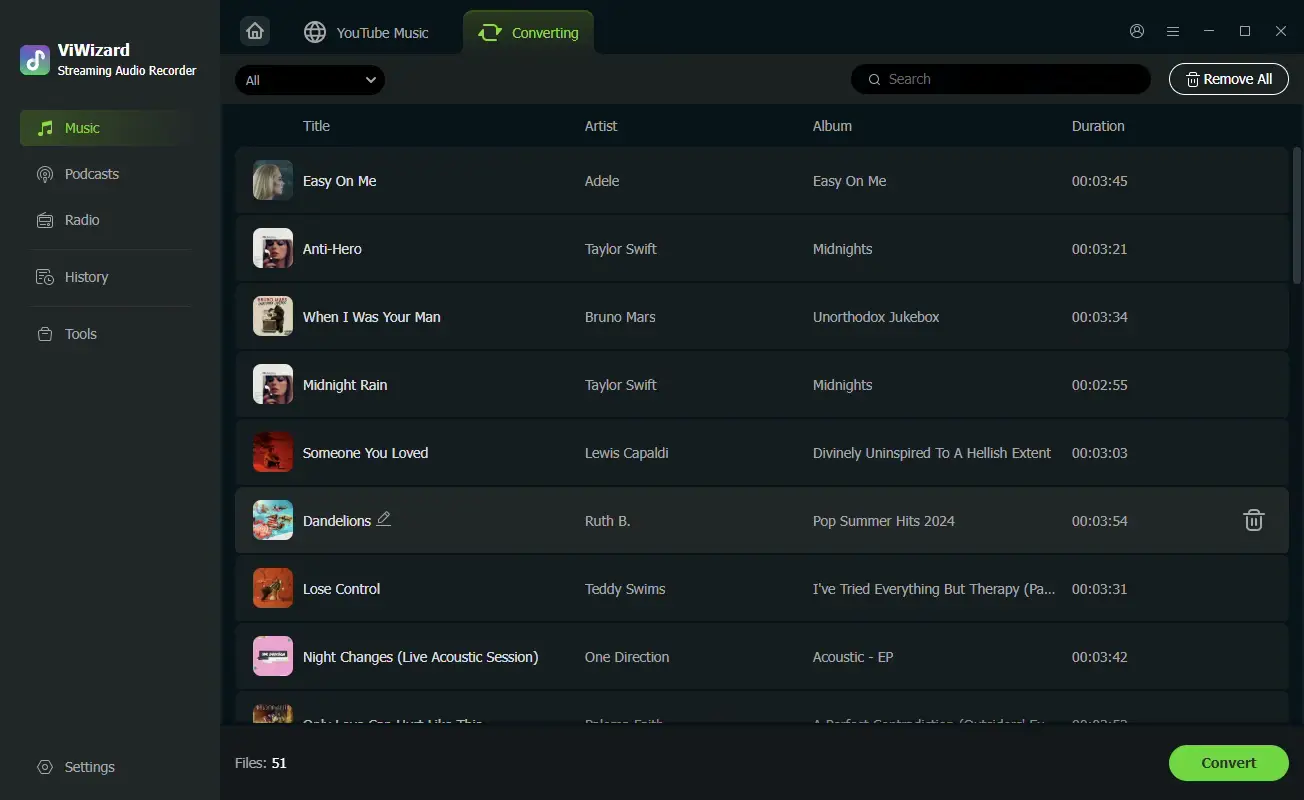
Review your selected tracks and click the Convert button to start the process.
ViWizard will process the selected music and save the resulting MP3 files to your chosen output folder. After conversion, you can check the completed tracks, review their metadata, and organize them into your personal music library.
More Than a YouTube Music Downloader
One reason to consider ViWizard Streaming Audio Recorder is that its usefulness isn’t limited to YouTube Music.
If you also listen to Spotify, Apple Music, Amazon Music, or SoundCloud, you can access supported platforms through the same application. It also handles longer audio content, including podcasts and audiobooks.
The software supports multiple output formats, making it easier to build a music library that works across different devices. Whether you prefer compact MP3 files or higher-quality FLAC audio, you can choose the format that suits your needs.
For anyone regularly switching between streaming platforms, having these features in one desktop application can save time and simplify audio management.
Final Thoughts
Downloading YouTube Music to MP3 can be useful if you want greater flexibility over how you organize and listen to your music. While the platform’s built-in offline feature works well within its own ecosystem, a dedicated converter offers another approach to managing compatible audio content.
With its built-in YouTube Music player, batch conversion, multiple output formats, and support for other streaming platforms, ViWizard Streaming Audio Recorder is a practical option to explore.