Running Apps on Your Galaxy Z Flip7 FlexWindow

The Samsung Galaxy Z Flip7’s FlexWindow (its external cover display) isn’t just for checking notifications or snapping quick selfies anymore. With its expanded size and enhanced functionality, it’s a powerful mini-screen that can run a selection of your favorite apps without needing to unfold your phone.
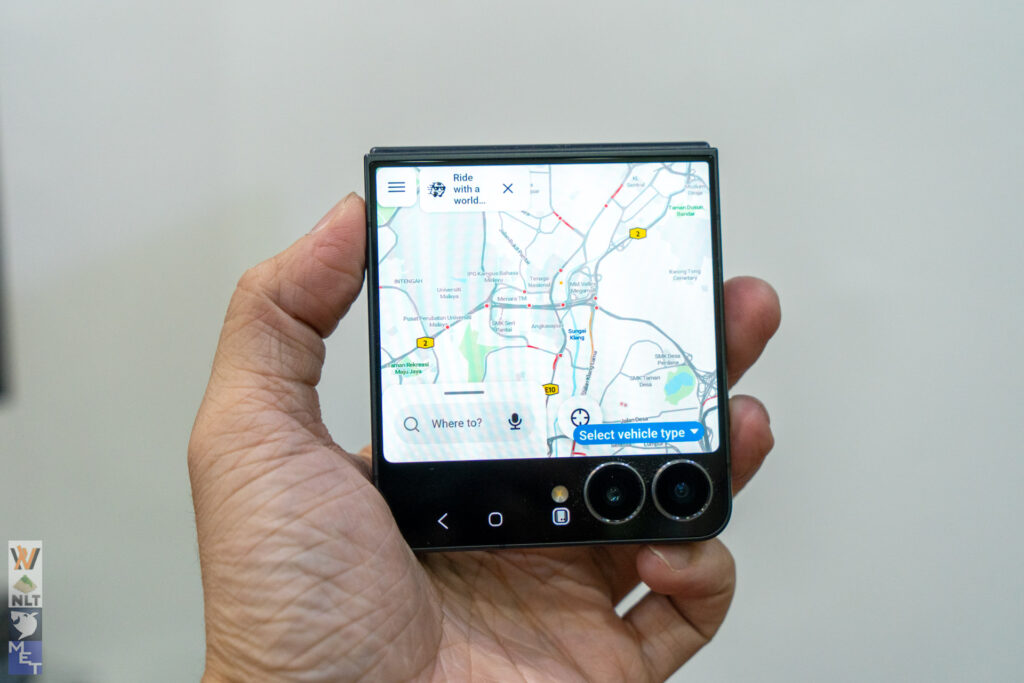
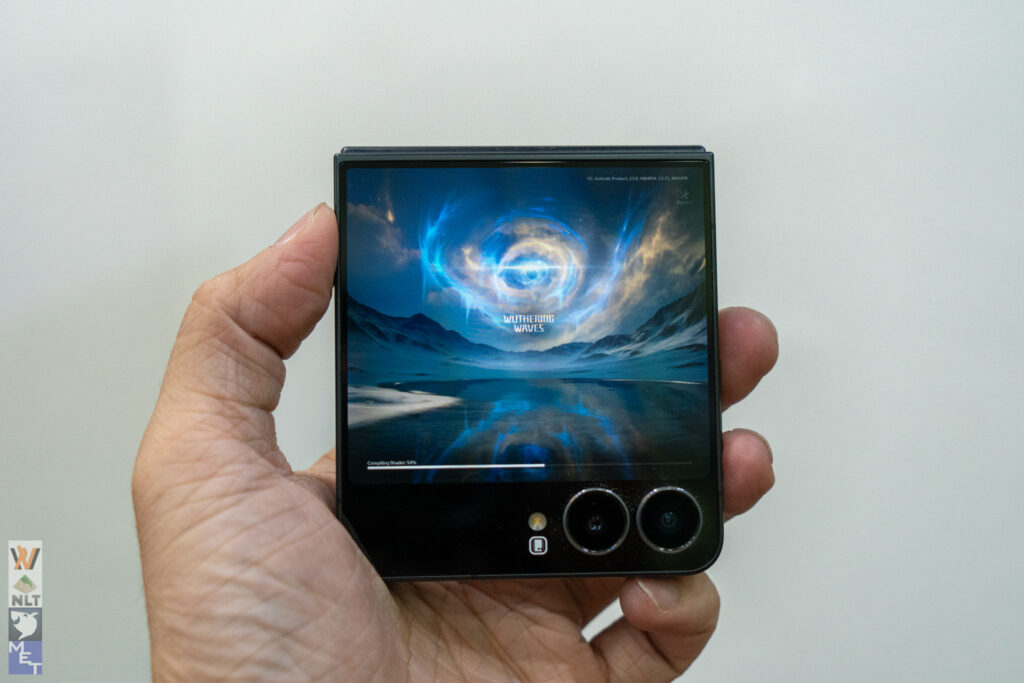
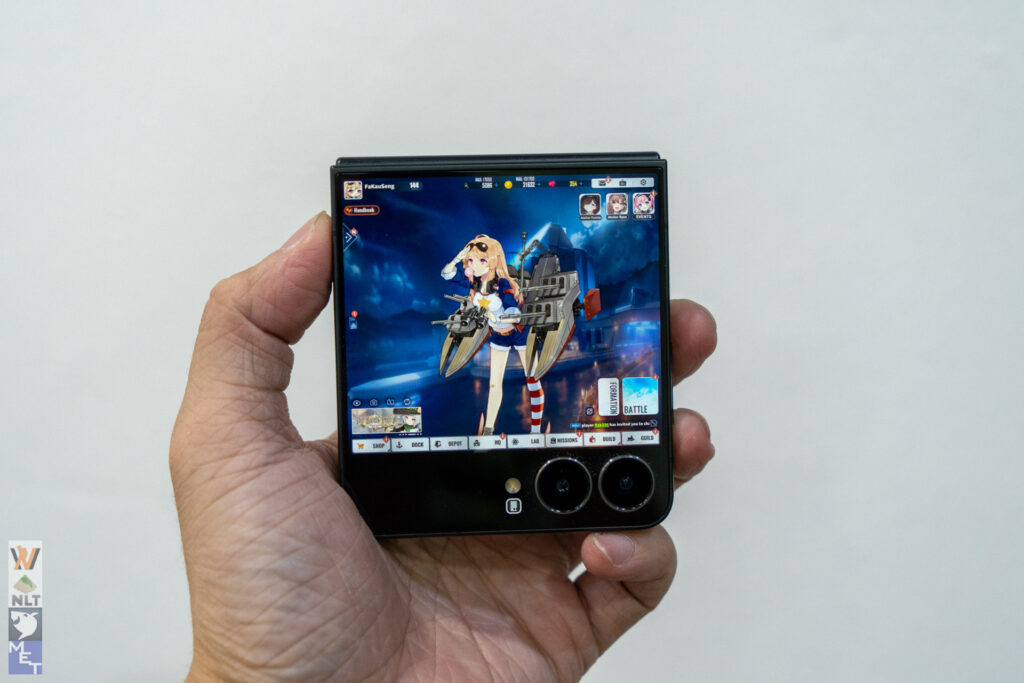
This tutorial will guide you through the steps to enable and effectively use apps directly from your FlexWindow, streamlining your daily interactions.
What is the FlexWindow?
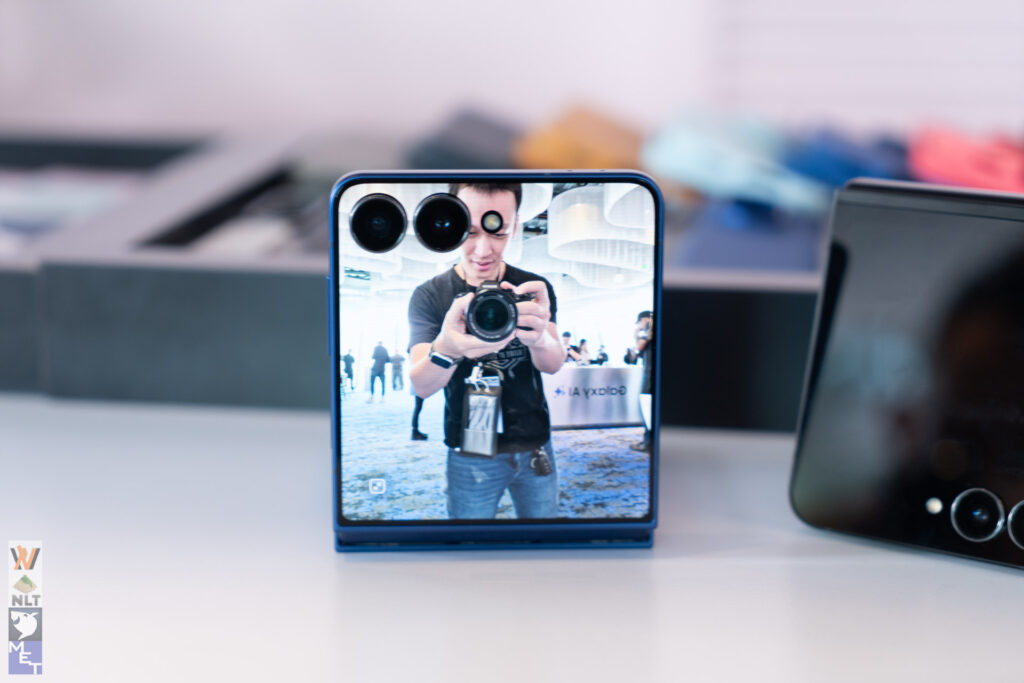
The FlexWindow is the secondary display on the exterior of your Galaxy Z Flip7. On previous Flip models, it was primarily for widgets and limited actions. With the Z Flip7, Samsung has significantly increased its size to 4.1 inches and enhanced its software capabilities, allowing a more robust app experience, including features like Gemini Live.
Why Use Apps on the FlexWindow?
Running apps on the FlexWindow offers incredible convenience:
- Quick Access: Get information or perform actions without fully opening your phone.
- Discreet Usage: Check messages or manage music subtly.
- Battery Efficiency: For simple tasks, using the smaller screen can be more power-efficient than constantly opening the main display.
Enabling More Apps on Your Cover Screen
To truly unlock the potential of your Z Flip7’s cover screen and run virtually any app, you’ll need to use Samsung’s Good Lock application and one of its modules. Here’s how you can do it:
Step 1: Install Good Lock:
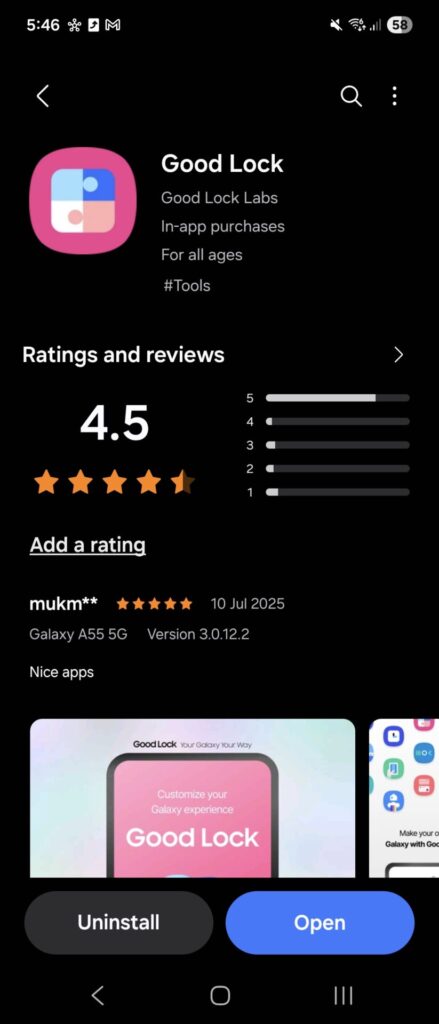
- First, head to the Samsung Galaxy Store (not Google Play Store) on your Z Flip7.
- Search for and download the Good Lock app. This is Samsung’s official customization suite.
Step 2: Install MultiStar Module:
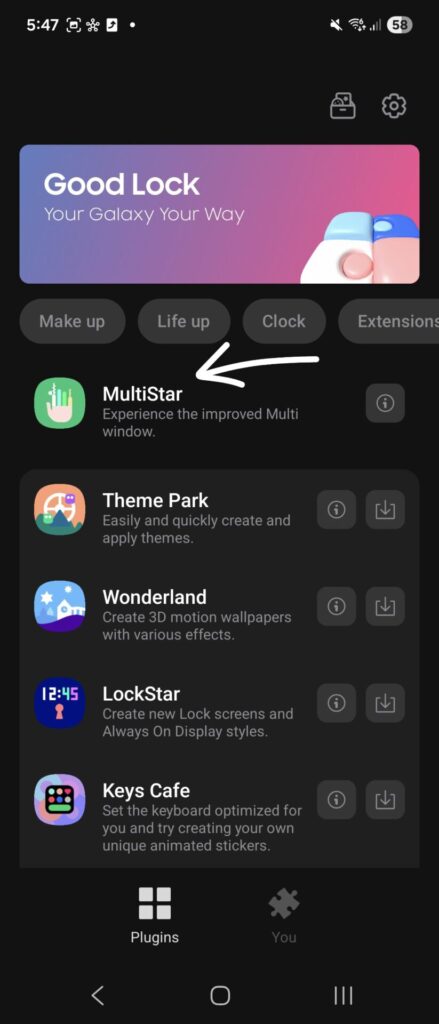
- Once Good Lock is installed, open it.
- Navigate to the “Life up” or “Plugins” tab within Good Lock.
- Find and download the MultiStar module. This specific module is designed to extend the functionality of Samsung’s foldable screens, including enabling apps on the cover screen.
Step 3: Select Apps in MultiStar:
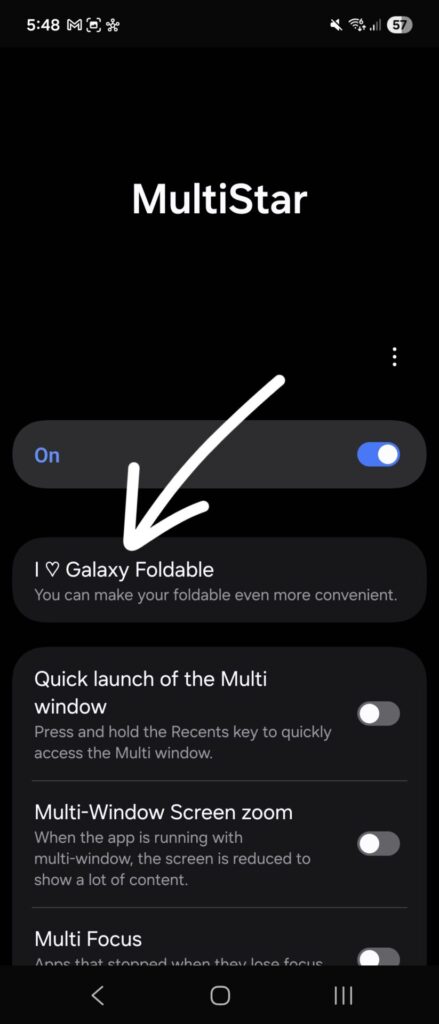
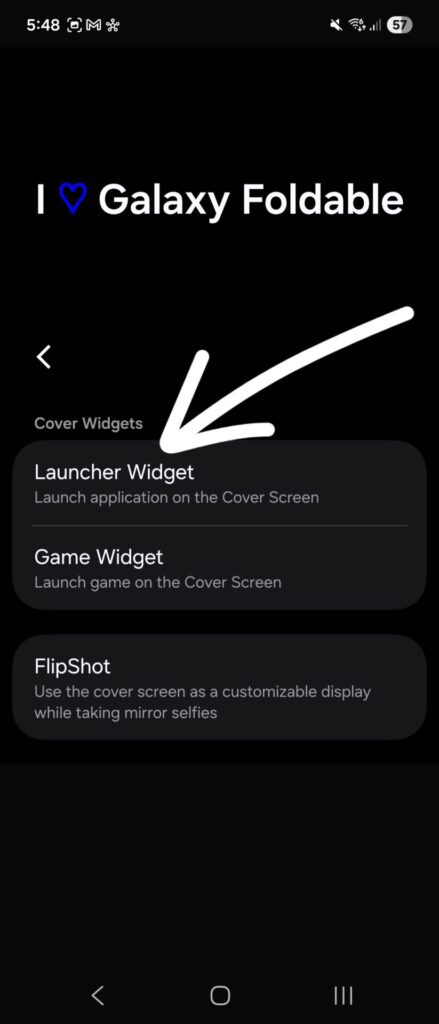
- After MultiStar is installed, open it from within the Good Lock app.
- Look for an option like “I ♡ Galaxy Foldable” or “Launcher Widget” within MultiStar.
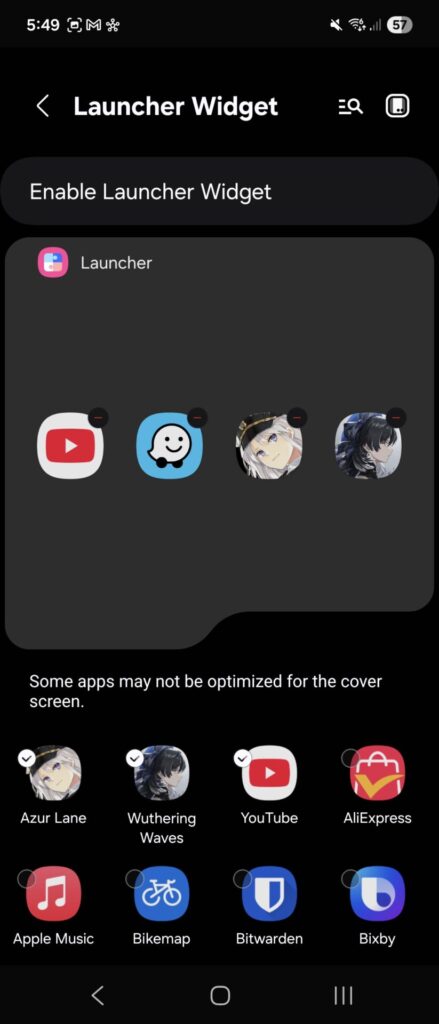
- From the list presented, select all the apps you wish to be able to run on your Z Flip7’s cover screen. This can include messaging apps, social media, maps, and even games.
Step 4: Add the Launcher Widget to Your Cover Screen:
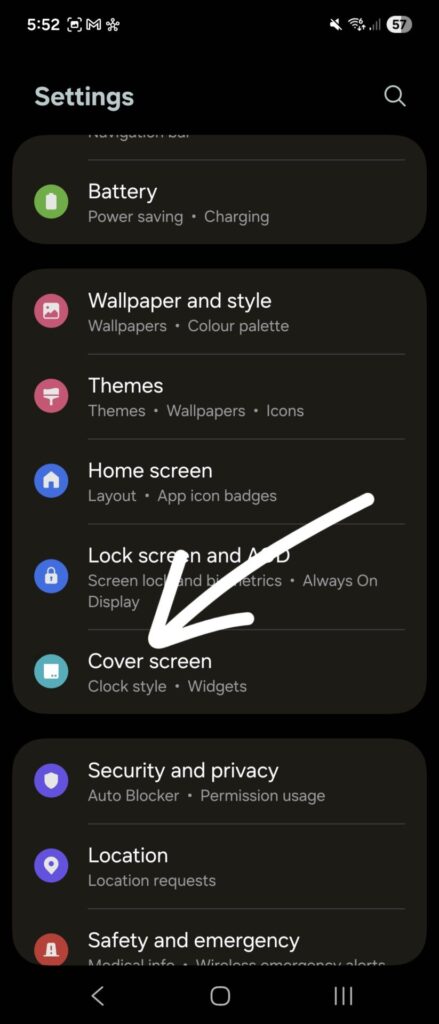
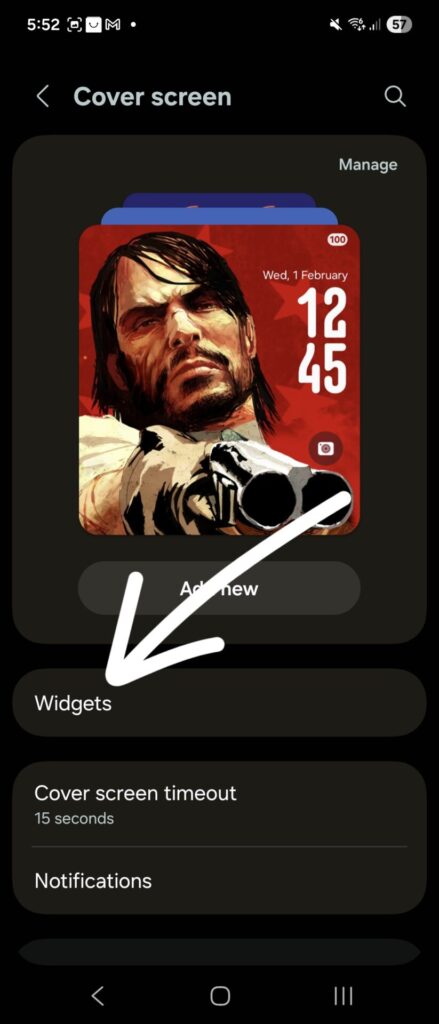
- Now, go to your phone’s main Settings app.
- Find the Cover Screen or External Screen menu.
- Tap on Widgets.
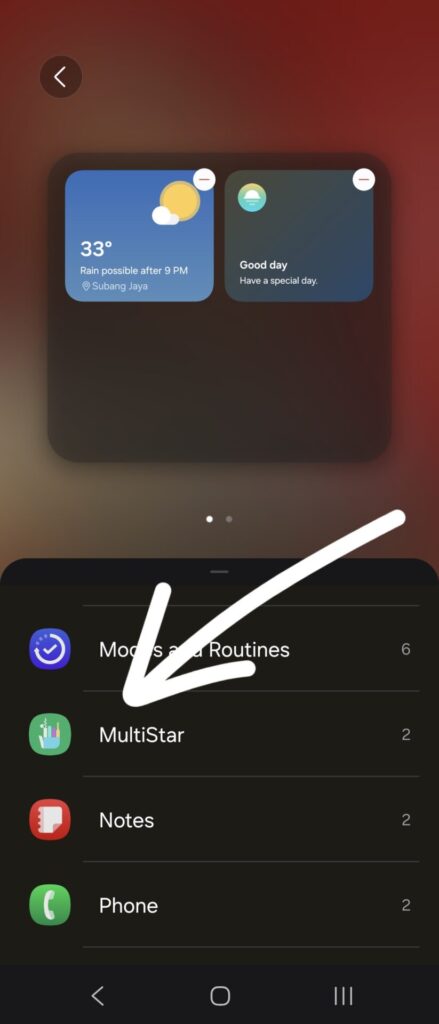
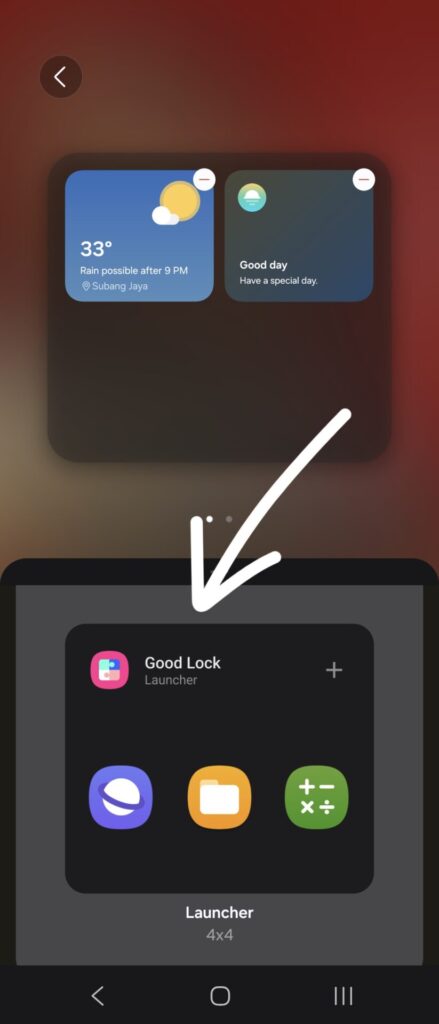
- Scroll down and locate the MultiStar section, and then add the Good Lock Launcher widget to your cover screen.
Once these steps are completed, you can simply fold your phone, turn on the cover screen, and swipe left until you reach the new Launcher widget. From there, you can tap on any of your selected apps to open and use them directly on the cover screen. Keep in mind that while many apps will work, some might not be perfectly optimized for the smaller, unique aspect ratio of the cover screen.